
Table of Contents
- What Is a 3D Printed Desk Buddy and Why Design Your Own
- Choosing Beginner 3D Modeling Software
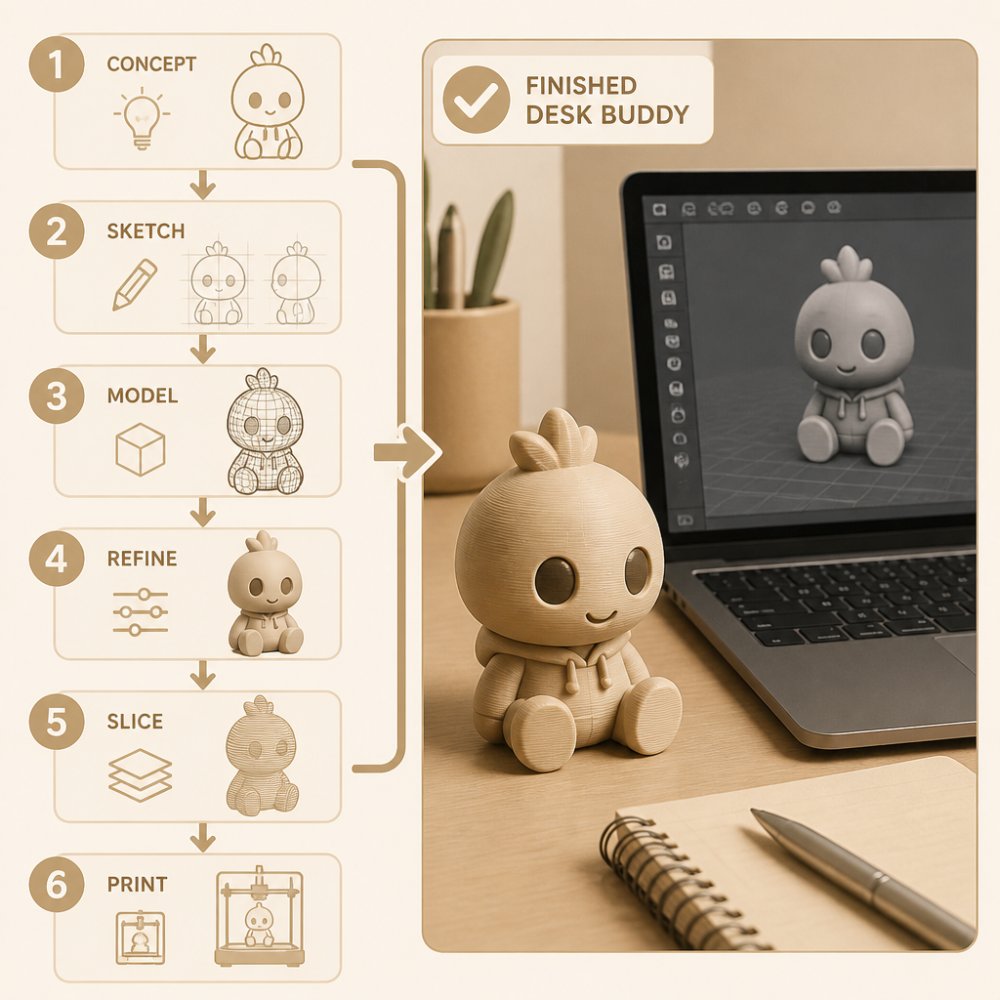
- Planning Your Desk Buddy Design: Concept to Sketch
- Building Your 3D Model from Scratch
- Adding Custom Details: Names and Personalization with a Custom 3D-Printed Nameplate
- Handling 3D Printing Supports and Overhangs
- Preparing Your 3D-Printed Desk Organizer Design for Printing
- Printing, Finishing, and Displaying Your Desk Buddy
- Frequently Asked Questions
Last Updated: October 10, 2026
What Is a 3D Printed Desk Buddy and Why Design Your Own
A 3D printed desk buddy is a small, personalized figurine designed to sit on your desk or shelf. It's both a functional organizer and decorative piece that reflects your personality.
The appeal is control: you decide the size, shape, colors, and custom details. When you design your own, you create something genuinely one-of-a-kind instead of generic store-bought accessories.
At Bandit's Print Den, customers tell us their personalized desk buddy became a conversation starter at work and the ideal gift.

With the right tools and workflow, beginners can go from idea to finished print in a weekend.
Choosing Beginner 3D Modeling Software
Free and beginner-friendly software options exist, you don't need expensive professional tools.
Two standout options for beginners: Tinkercad and Fusion 360 (free for personal use). Both run in your browser and have active communities.
Tinkercad for Visual Design and Model Editing
Tinkercad is the easiest entry point. It uses a visual, drag-and-drop interface with basic shapes. Critically, Tinkercad lets you import and edit existing STL files, which is how most people start.
Key features:
- No installation required
- Intuitive interface (shapes snap together)
- Built-in tutorials
- Active community
- Free account with unlimited designs
- Import and modify STL files from Thingiverse
Editing an existing model in Tinkercad:
- Download an STL file from Thingiverse
- Click "Import" and upload the STL
- Right-click and select "Edit Design" to convert it to editable components
- Add text, change colors, add a pen holder, or scale parts
- Export as a new STL when done
Fusion 360 for Precision and Parametric Design
Fusion 360 is Autodesk's free cloud-based CAD tool. It's more powerful than Tinkercad but has a steeper learning curve. Use it for exact dimensions or functional features like a precise pen-holder slot. It uses parametric modeling: define dimensions as numbers, and related parts update automatically.
Basic Fusion 360 workflow:
- Create a sketch (2D outline) and extrude it into 3D
- Add layers by sketching and extruding again
- Use "Fillet" to round sharp edges
- Add text with the "Text" tool
- Export as STL
Fusion 360 has a steeper learning curve but gives precision Tinkercad cannot match.
Choosing Between Them
Start with Tinkercad to customize an existing model quickly. Use Fusion 360 for exact dimensions or functional slots. Many use both: Tinkercad for prototyping, Fusion 360 for refinement.
Planning Your Desk Buddy Design: Concept to Sketch
Before opening software, sketch for 10 minutes. Ask: What's the main character? How tall? What details matter? Will it hold anything? What colors?
Label dimensions roughly. A common mistake is jumping into software without a plan, five minutes of sketching saves 30 minutes of frustrated redesigning. Consider function: does it need to hold something, or is it purely decorative?
Building Your 3D Model from Scratch
Now you're ready to design. We'll use Tinkercad for this walkthrough since it's the most accessible.
Creating the Base Shape
Open Tinkercad and drag a sphere onto the workspace for the head (about 1 inch diameter). Add a cylinder below it for the body (slightly wider, about 1.5 inches tall). Position the head on top. These basic shapes form your foundation.
Adding Details and Features
Add details: small spheres for eyes, cylinders for arms, curves for a smile. In Tinkercad, duplicate shapes, group them, use the "hole" tool to subtract, and adjust colors. Work in layers: head first, then body, then accessories. Start with bigger details, then smaller ones.
Adding Custom Details: Names and Personalization with a Custom 3D-Printed Nameplate
Add a name or custom text using Tinkercad's text tool (0.3-0.5 inches for desk buddies). Create a nameplate, a thin rectangular base with text on top, for a polished look. Some prefer interchangeable signs like Bandit's Print Den's Elephant and Cat desk buddy designs.
Handling 3D Printing Supports and Overhangs
An overhang is any part extending outward at an angle steeper than 45 degrees (like a raised arm). Without support material, these parts fail. Most 3D printers automatically add support structures, temporary scaffolding you remove after printing. To minimize overhangs: angle arms and legs at 45 degrees or less, keep accessories small and close to the body, and avoid horizontal shelves. Check the slicing software preview before printing to see where supports will be placed.
Preparing Your 3D-Printed Desk Organizer Design for Printing
Your design is done. Now prepare it for the printer. This step is where most beginner prints fail. A few minutes of checking now saves hours of wasted filament.
Design-for-Printability Checks: Wall Thickness and Tolerances
Before you export, verify that your design can actually print.
Wall thickness is the most common failure point. If any wall in your design is thinner than 0.8mm (about the thickness of a credit card), it will either break during printing or snap off when you remove supports.
How to check:
- In Tinkercad, use the "Measure" tool to check the thickness of walls, arms, and thin features
- Anything under 0.8mm needs to be thickened
- For small details like fingers or antenna, aim for 1.5mm minimum
- For structural parts (the body, base), 2mm is safer
Overhangs (parts that stick out without support below them) are the second issue. An overhang steeper than 45 degrees will sag or fail.
How to check:
AWA Grim - Funny Grim Reaper Desk Buddy | Holidays with Attitude | 3D Printed →
- Rotate your model in the software to view it from the side
- Look for any part that extends outward at a steep angle
- If an arm or hat brim looks like it's floating, it needs support or redesign
- Tilt arms and legs to 45 degrees or less to avoid supports
Tolerances matter if your desk buddy has moving parts or slots (like a pen holder or interchangeable nameplate). A slot that's too tight won't accept the pen. A slot that's too loose will be sloppy.
Rule of thumb:
- For a slot to fit a pen (5mm diameter), make the slot 5.2mm wide
- For a sliding sign (2mm thick), make the slot 2.3mm wide
- Test with a small printed sample first (see below)
Test Printing: The Critical Step Most Beginners Skip
Before you print your full desk buddy, print a small test piece. This catches problems before you waste an hour and $5 of filament.
What to test:
- A single arm or leg, Does it print without supports? Is it strong enough?
- The slot or functional feature, Does a pen fit? Does a sign slide smoothly?
- Text or fine details, Are they readable or do they blur together?
- The base, Is it stable or does it tip over?
To create a test piece:
- In Tinkercad, duplicate your design
- Delete everything except the part you want to test
- Scale it down to 50% to save time and filament
- Export and print
- Evaluate the result
A test print takes 15-30 minutes and costs $0.50-$1.00 in filament. It's the cheapest insurance you can buy.
Exporting and Checking Your STL File
Export your design as an STL file. This is the standard format for 3D printing. In Tinkercad, click "Export" and choose "STL for 3D Printing."
Save the file somewhere you can find it.
Before you print, check the file:
- Open it in a preview tool (Tinkercad lets you view it, or use free tools like MeshLab)
- Look for holes, gaps, or floating parts (these indicate a corrupted file)
- Make sure the size is what you expect (measure in the preview)
- Verify that details are large enough to print clearly
- Rotate the model 360 degrees to spot any hidden issues
A common issue: tiny details don't print well. If your design has thin walls (less than 0.8mm) or small features, they might break or disappear. Simplify these areas or thicken them.
Slicing and Print Settings
Slicing is the process of converting your STL file into printer instructions. You use slicing software (like Cura, PrusaSlicer, or your printer's native software) to set print parameters.
Key settings:
- Layer height: 0.2mm is standard and gives good detail. 0.1mm is finer but takes longer. Start with 0.2mm.
- Infill: 15% is typical for decorative items. It's strong enough and uses less filament. For desk buddies with functional parts (pen holders), use 20%.
- Print speed: 50-60mm/s is safe for beginners. Faster is riskier and produces lower quality.
- Support: Enable if your design has overhangs. Disable if it doesn't. Supports add 20-40% to print time.
- Nozzle temperature: Follow your filament manufacturer's recommendation (usually 200-210°C for PLA)
- Bed temperature: Usually 60°C for PLA
Load your STL file into the slicer. The software shows you a preview. Check that:
- Supports are only where needed (not everywhere)
- The model fits on your print bed
- The estimated print time is reasonable (2-6 hours for a desk buddy)
- The filament weight estimate matches your expectations
Adjust settings if needed. Then save the file to your printer.
Printing, Finishing, and Displaying Your Desk Buddy
Your print is running. This is the exciting part.
Most desk buddy prints take 2-6 hours depending on size and settings. Don't interrupt the print. Let it finish.
Once it's done:
- Remove supports carefully. Use pliers or a utility knife. Go slow to avoid breaking the model.
- Sand rough edges. Use fine-grit sandpaper (220-grit or higher) to smooth layer lines and support marks.
- Paint or stain (optional). PLA filament accepts acrylic paint well. Paint adds personality and hides imperfections.
- Seal if desired. A clear coat protects the finish and makes colors pop.
Your desk buddy is now ready for display. Place it on your desk, shelf, or give it as a gift.
This is where the real satisfaction comes. You designed something from scratch and held it in your hands. That's the magic of 3D printing.
If you want a professional-quality print without the learning curve, that's where Bandit's Print Den comes in. We handle the printing and finishing for you. Our team can take your rough idea and turn it into a high-quality desk buddy with incredible detail. Our quality-control expert Bandit ensures every print meets our standards.
Whether you print it yourself or have us create it, a personalized desk buddy makes your workspace feel genuinely yours.
Designing and printing your own desk buddy is a rewarding project that transforms how you think about your workspace. If you'd rather skip the learning curve and get a professionally printed result, Bandit's Print Den specializes in custom 3D-printed desk accessories with fast shipping and exceptional detail.
Frequently Asked Questions
What software can beginners use to design a 3D printed desk buddy?
Tinkercad is the best starting point for complete beginners, it's free, browser-based, and uses simple drag-and-drop shapes. OpenSCAD works well if you prefer writing code-like scripts. Both export to STL format, which is the standard file type for 3D printing. No prior experience needed; most users create their first model within an hour.
How do you add a custom 3D-printed nameplate to your desk buddy design?
Use your CAD software's text tool to create lettering, then embed it as a raised or recessed element on your desk buddy. In Tinkercad, add text as a shape and position it on the model's surface. For deeper customization, you can design a separate nameplate piece that attaches with a slot or peg. Export the combined design as one STL file for seamless printing.
What layer height and infill settings work best for a small desk buddy?
A 0.2 mm layer height balances print quality and speed for desk-sized figures. Use 15% infill for most desk buddies, this keeps the model lightweight while maintaining structural strength. If your design has thin arms or interchangeable parts, increase infill to 20-25%. Faster print times and lower filament use make these settings ideal for desk accessories.
How do you avoid printing supports on a 3D printed desk buddy?
Design with overhangs under 45 degrees whenever possible. Keep arms angled downward, position features so they don't extend horizontally from the body, and use a wider base for stability. If supports are unavoidable, orient the model in your slicing software to minimize them. Test your design in a preview before printing to catch problem areas early.
0 comments