
Table of Contents
- Why 3D Printed Joints Fuse Together
- How to Free Stuck 3D Printed Joints: Step-by-Step
- The Best Tools for 3D Print Post-Processing Stuck Joints
- 3D Printing Tolerance Settings for Joints That Move Freely
- Slicer and Hardware Fixes: Layer Height, Flow Rate, and Cooling
- Lubricants for PLA 3D Prints: What Works and What Doesn't
- When to Stop Fixing and Reprint: Prevention vs. Repair
- Frequently Asked Questions
Last Updated: October 20, 2026
Why 3D Printed Joints Fuse Together
A stuck joint almost always comes down to one thing: the gap between moving parts closed during printing, so plastic from one side bonds to the other and you get a fused part instead of an articulated figure.
Stuck joints are rarely a mystery: find the cause and you fix the joint.
Here's the short version of what's happening:
- Too little clearance. The slicer or model left no room for movement.
- Over-extrusion. The nozzle pushed out more plastic than the gap could hold.
- Heat creep. Layers stayed soft too long and welded together.
Most guides treat these as one problem. They're not. Each one needs a different fix, and the diagnostic section below shows you how to tell them apart.
Clearance and Tolerance Between Moving Parts
Clearance is the physical gap between two parts that need to move. Tolerance is how much that gap can vary and still work.
Design joints with a gap wide enough that normal printer variation won't close it: too tight and the joint fuses, too loose and the figure won't hold a pose.
Every printer has its own personality, so a gap that works on one machine can bind on another, test prints matter more than any chart online.
Print Orientation and Joint Geometry
Orientation decides which way the joint gap faces the nozzle. Print a ball joint so the gap runs vertically and gravity plus sagging plastic can bridge it shut; rotate the model and the same joint prints clean.
Joint geometry matters too. Sharp internal corners collect excess material. Rounded, chamfered edges let plastic flow away from the gap instead of into it.
How to Free Stuck 3D Printed Joints: Step-by-Step
Freeing a stuck joint safely takes about 5 to 10 minutes and a light touch. The goal is to break the bond without snapping the part. Work slowly, and stop the moment you feel real resistance.
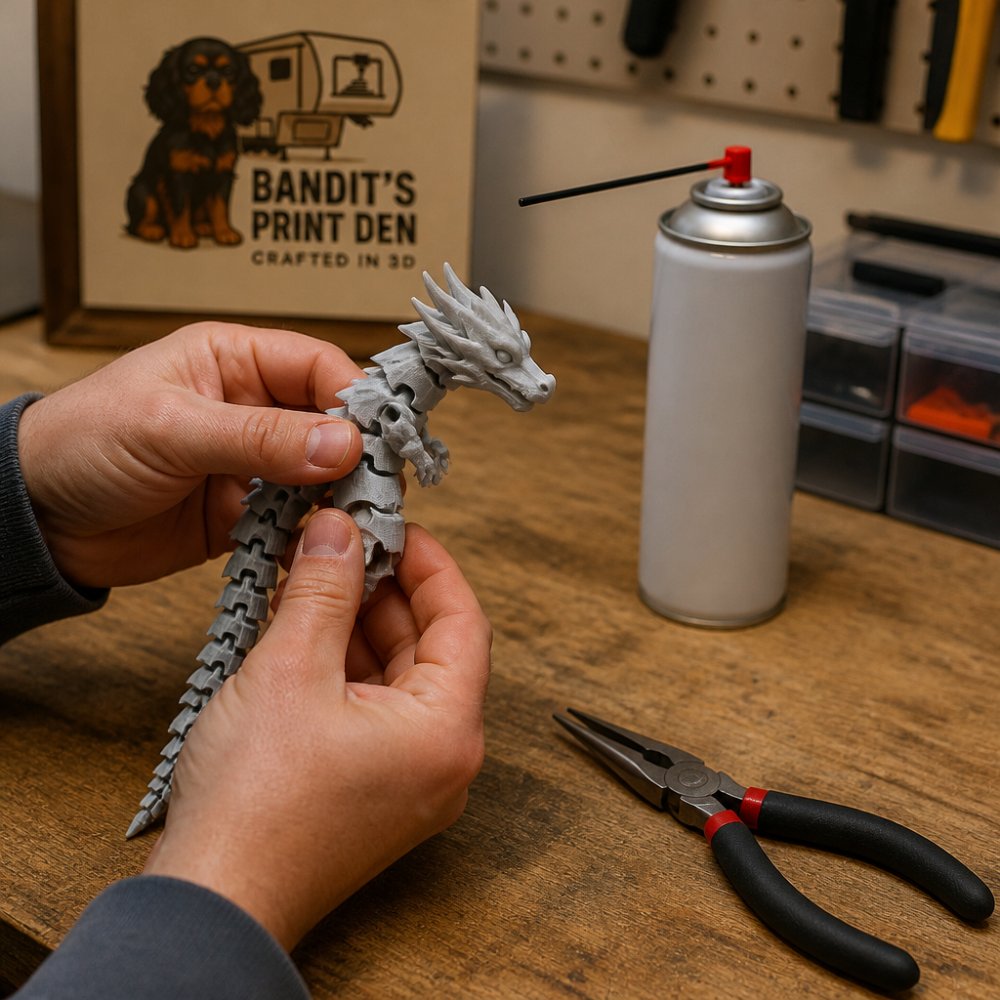
What You'll Need Before You Start
Gather these first:
- Needle-nose pliers with smooth jaws
- A thin craft knife or hobby blade
- Compressed air or a can of keyboard cleaner
Step 1: Identify the Stuck Point
Flex the joint gently in every direction. Find the exact spot that won't move. Don't force the whole limb, just isolate the pivot.
Expected result: You know which axis is frozen and which still moves.
Step 2: Clear the Gap
Blast compressed air into the joint gap to clear loose strings and dust, then run the hobby blade lightly along the seam to score any thin plastic bridges.
Expected result: The gap looks cleaner and you can see daylight through part of it.
Step 3: Work the Joint Gently
Hold the part steady with the pliers and rock the joint back and forth with your fingers. Small movements, many repetitions. Never twist hard in one direction.
Expected result: The joint starts to give a little, then moves freely.
Step 4: Warm It If It Won't Budge
Soak the part in warm water for a few minutes to soften the plastic, then repeat step 3. PLA softens gradually, so patience beats force.
Expected result: A stubborn joint loosens without cracking.
The Best Tools for 3D Print Post-Processing Stuck Joints
The best tools for 3D print post-processing are simple: smooth-jaw pliers, a hobby knife, compressed air, and a deburring tool.
What most guides miss is that smooth jaws matter more than brand. Serrated pliers leave teeth marks that turn into stress cracks later.
A few tools worth having on the bench:
- Flush cutters for trimming strings near the joint
- A deburring tool for cleaning the seam edge
- Compressed air for clearing the gap
Skip anything that applies heat directly to the joint. A heat gun will warp the surrounding geometry before it frees the pivot.
3D Printing Tolerance Settings for Joints That Move Freely
Good 3D printing tolerance settings for joints start with a gap of roughly 0.2 mm to 0.4 mm, adjusted for your printer's accuracy. Start wide, then tighten once you know how your machine behaves.
That single range is where most guides stop, and it's why so many readers still end up with fused joints. The working gap depends on material, joint type, and calibration. Here are starting ranges we use on print-in-place articulated figures, measured as the radial or linear gap between moving surfaces:
| Material | Pin/hinge joint gap | Ball-and-socket gap | Notes |
|---|---|---|---|
| PLA | 0.25-0.35 mm | 0.30-0.40 mm | Least shrink, but brittle; err wider on thin pins |
| PETG | 0.30-0.45 mm | 0.35-0.50 mm | More stringing and self-bonding; needs the wider end |
| ABS/ASA | 0.30-0.40 mm | 0.35-0.45 mm | Shrinks as it cools; verify with a test coupon |
| TPU/flexible | 0.40-0.60 mm | 0.50-0.70 mm | Material squishes into gaps; go wide or design a living hinge instead |
Treat these as starting points, not gospel: a calibration test print matters more than any chart online, including this one.
A Repeatable Joint Clearance Test
Instead of guessing, print a small test coupon before committing to a full figure: three or four pin-and-socket or ball-and-socket pairs with gaps stepping from 0.20 mm to 0.50 mm in 0.05-0.10 mm increments, in the same material and orientation as the real part.
Mini Fidgets | Collect Them All! | Articulated Pocket Pals | Buy 4, Get 1 Free →
- Slice the coupon with your production settings, same layer height, flow rate, temperature, and cooling you plan to use on the figure.
- Print it in the target material. Don't test in PLA if the final part is PETG; the materials behave differently as they cool.
- Let it cool fully, at least 10-15 minutes, before testing. A joint that moves warm can bind once the plastic contracts.
- Test each gap by hand. Note the smallest gap that moves freely without slop, and the largest gap that still holds a pose.
- Pick the middle of that working window for your model, then add 0.05 mm of safety margin for printer-to-printer variation.
Record the result on the spool or in your slicer profile to skip the guesswork next time.
Why the Gap Closes Up
Clearance isn't just the number in the model. Several things eat into it during printing:
- Material shrinkage. ABS and ASA can pull inward as they cool, tightening a gap that looked correct in CAD. PLA shrinks less; PETG sits in between but tends to string into gaps.
- Over-extrusion. A flow rate a few percent too high pushes plastic into the gap from both sides. Calibrate flow before you blame the model.
- Elephant's foot. The first layer squashes outward and can weld the bottom of a joint shut. A small first-layer horizontal expansion compensation or a chamfer on the bottom edge helps.
Slicer and Hardware Fixes: Layer Height, Flow Rate, and Cooling
Slicer and hardware problems cause most fused joints and are the easiest to fix, but changing five settings at once tells you nothing about which one mattered. Work through them in order, isolating one cause per step, and re-test after each change.
Step 1: Confirm the Hardware Is Sound
Before touching slicer settings, rule out mechanical problems that mimic bad tuning:
- Clogged or partially clogged nozzle. A partial clog causes uneven extrusion and blobs that can bridge a gap. Do a cold pull or swap the nozzle if output looks rough.
- Worn nozzle. A nozzle that's been through abrasive filament can open up and over-extrude. Measure the extrusion width on a test wall; if it's wider than the slicer expects, replace the nozzle.
- Loose belts or eccentric nuts. Wobble shows up as uneven walls and can distort joint geometry. Check that the gantry and bed don't rock.
If the hardware checks out, move to the slicer.
Step 2: Calibrate Flow Rate First
Over-extrusion is the quiet culprit behind most fused joints. A flow rate a few percent too high pushes plastic into the gap from both sides, and no amount of clearance fixes it.
Print a single-wall flow test or small calibration cube, measure wall thickness with calipers, and adjust flow until it matches the slicer's target.
Step 3: Tune Temperature and Cooling
Running hot makes filament flowier and more likely to bleed into gaps, so back off 5-10 °C from your normal setting and re-test.
A useful check: print two small joint coupons, one at your normal temperature and one 10 °C lower, and compare how freely each moves after cooling. The cooler one usually wins on fused joints, at some cost in layer strength.
Step 4: Adjust Layer Height and Retraction
Layer height: Thicker layers sag more and can bridge a narrow gap. Thinner layers give cleaner joint walls but take longer. If a joint fuses only on the top of the gap, try a thinner layer height there.
Retraction and stringing: Strings inside a joint act like glue. Tune retraction distance and speed to cut them down, and check the joint gap for wisps after a test print.
Step 5: Fix Orientation and Geometry in the Slicer
If settings are dialed in and the joint still fuses, the problem is likely geometry or orientation, not the printer. Rotate the part so the joint gap runs parallel to the build plate where possible, add a small chamfer or fillet to sharp internal corners so plastic flows away from the gap, and check that supports aren't being generated inside the joint gap, if they are, block them or reorient.
Lubricants for PLA 3D Prints: What Works and What Doesn't
Lubricants for PLA 3D prints work best when they're dry or very light: a tiny amount of dry PTFE powder or silicone spray is usually enough to free a stiff joint and keep it moving.
What doesn't work: heavy oils and greases. They attract dust, stain the plastic, and can soften PLA over time.
A short guide:
- Dry PTFE powder: Best for tight joints, no mess
- Silicone spray: Good for larger pivots, apply sparingly
- Graphite powder: Works but stains light colors
Apply a tiny amount, work the joint, then wipe off the excess. If the joint needs constant lubrication to move, the clearance is too tight and a reprint will serve you better.
When to Stop Fixing and Reprint: Prevention vs. Repair
Stop fixing and reprint when the joint is cracked, a fastening pin has snapped, or every fix has failed and it still binds.
Prevention is where the real win lives. Every hour spent dialing in clearance and calibration saves several hours of freeing stuck joints later.
Signs it's time to reprint:
- Visible cracks or stress marks near the pivot
- A snapped pin or broken clip
- Joint still fused after clearance, flow, and cooling fixes
For collectors and gift-givers, buying from a studio that checks its prints matters. Our articulated figures, like the T-Rex Dinosaur with its fully articulating tail and movable jaw, are designed to have joints that move the way they should.

If you'd rather skip the troubleshooting entirely, our Mini Fidgets are fully articulated and ready to fidget straight out of the box, at $5.00 each with a buy-four-get-one-free deal.

Frequently Asked Questions
Why are my 3D printed joints fused together?
Joints fuse when the gap between moving parts is too small for your printer's actual resolution. Most slicers default to 0.2mm clearance, but printers with wider nozzles or slight over-extrusion can bridge that gap. Other causes include printing too hot, insufficient cooling, and support material left inside the joint. Check your model's clearance first, then verify flow rate and nozzle temperature with a small test print before committing to a full articulated figure.
What tools are safe to use to break apart stuck 3D prints?
Start with the least aggressive option: your hands, then a plastic scraper, then needle-nose pliers wrapped in tape to protect the surface. A hobby knife works for trimming support material but should never be wedged into a joint gap. Compressed air clears debris without force. Avoid metal screwdrivers and hammers, which crack PLA along layer lines. Warm water can soften PLA slightly, but keep the part submerged briefly and dry it completely afterward.
Can I use lubricants on 3D printed articulated figures?
Yes, but choose carefully. Dry PTFE or silicone spray works well for PLA joints because it doesn't attract dust or degrade the plastic. Apply a tiny amount to the joint gap, work the joint back and forth, then wipe off the excess. Avoid petroleum-based oils and WD-40, which can soften PLA over time and leave a residue that collects lint. For desk figures that stay indoors, a single application usually lasts months.
How do I prevent joints from fusing during the printing process?
Set joint clearance to at least 0.3mm in your model, print with a 0.4mm nozzle, and calibrate flow rate before your first articulated print. Lower nozzle temperature by 5-10°C from your standard PLA profile and increase part cooling. Print a small test joint before a full figure. If you sell or gift 3D printed figures, a quick test print catches tolerance problems before they become stuck joints in a customer's hands.
A stuck joint is frustrating, but it's almost always fixable or preventable. The trick is diagnosing the cause before you start prying. At Bandit's Print Den, we print and hand-finish every articulated figure with clearance and cooling dialed in, so your figure arrives ready to pose. Browse our collectibles, add your favorite to the cart, and let Bandit handle quality control.
0 comments